Guiding Staff From Shadow AI To Approved Tools With User Risk


Picture a road closed overnight for construction. There’s a barrier and a “Road closed” sign, but no detour sign or arrow. As 8:00 AM traffic backs up, drivers cut through a school parking lot or a residential street, routes nobody planned for.
These drivers aren’t trying to break the rules; they need to get to work on time. Most AI policies have the same problem. They’re clear about what people can’t use, but rarely say what they can use in the moment.
So, when someone on a deadline hits a “no,” they do what the drivers do: find their own way around. Usually that’s a free AI tool on a personal account, with company data along for the ride. In a regulated business, every detour is an unvetted vendor.
Blocking tells people where they can’t go; guidance shows them where they can. User Risk does both the moment someone opens a tool in the browser.
Why “no” on its own sends people looking
Most people want to follow the policy, but convenience wins.
In UpGuard’s 2025 State of Shadow AI research, only 52% of employees said they were familiar with their company’s AI usage policy. Employees who received AI safety training were the ones using unapproved tools most often.
So even trained employees take the fastest route. If nobody has put an approved alternative in front of them, the fastest route is an unapproved tool. Training can name the approved tool once. It can’t be there when someone’s choosing.

That makes timing the real gap. Left to a policy and a “road closed” sign, AI governance breaks down in three places:
Nobody knows what’s approved. Employees need a tool now, not after someone replies hours later. If the answer lives in an onboarding PDF, an intranet page, or a colleague’s memory, the faster (and usually unapproved) option wins.
A block with no alternative starts a search. A network block shows an error page and nothing else. The task still needs doing, so people try the next tool, then the next.
You can’t tell if the message landed. Training completion tells you who clicked through a module. It doesn’t tell you who switched to the approved tool.
Each detour also costs you goodwill. Security starts to look like the “department of no,” and that makes the next detour more likely.
We built User Risk to put up the detour sign.
How User Risk turns “no” into “use this instead”
User Risk puts guidance in the browser, through the same lightweight extension that discovers the apps your people use and enforces your policy.
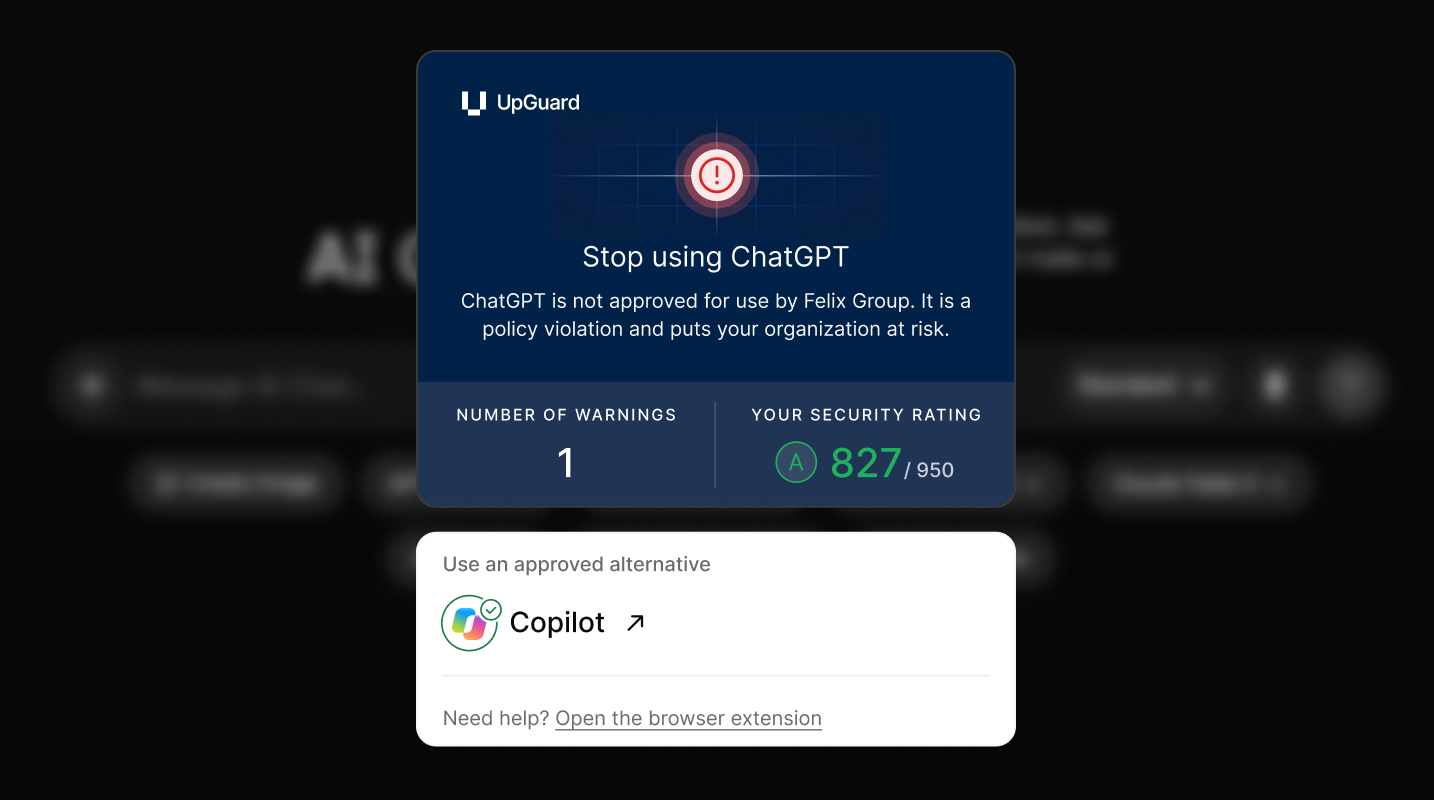
Three User Risk features do the work:
- Real-Time Contextual Nudges appear when someone opens an app you’ve set to Nudged. They explain why the tool isn’t approved and point to the one that is. Apps you’ve blocked offer the approved alternative too.
- Personalized Security Scores give each employee their own security rating, updated daily, so they can see the effect of switching to approved tools.
- Automated Validation runs daily scans to confirm people switched to the approved tool, then clears the risk so you can show leadership the trend.
See how Contextual Guidance works, or take a User Risk product tour.
Aubrey’s first two weeks, with and without User Risk
Take Aubrey, a new operations coordinator. Here are her first two weeks, once without User Risk and once with it. Same onboarding packet, same deadline on day three.
Before User Risk
Day 1. Aubrey signs the AI policy along with a stack of other onboarding documents. Copilot is the approved tool, somewhere on page 12.
Day 3. She needs a 40-page supplier audit report summarized by lunch. She searches for a free AI summarizer, signs up with her personal Gmail, and uploads the PDF.
Day 4. On a screen share, her manager mentions the team uses Copilot. Aubrey asks in Teams which other AI tools are fine. Three people give three answers.
Day 8. The helpdesk gets another “is this AI tool allowed?” ticket. Someone on your team answers it by hand, again.
Day 10. IT blocks the summarizer at the network after someone spots it. Aubrey’s next task needs a transcription tool, so she finds one of those too.
Each time Aubrey hit a wall, she went looking for another tool, because nothing ever said, “try this instead.”
After User Risk
Day 1. Same onboarding packet. The User Risk extension is already on Aubrey’s managed laptop.
Day 3. Aubrey opens the free summarizer. You’ve set it to Nudged, with uploads blocked, so a Real-Time Contextual Nudge appears. It explains in a line why the tool isn’t approved and links straight to Copilot.
Day 3, two minutes later. Aubrey has her summary from Copilot. The supplier report never reaches the unapproved tool.
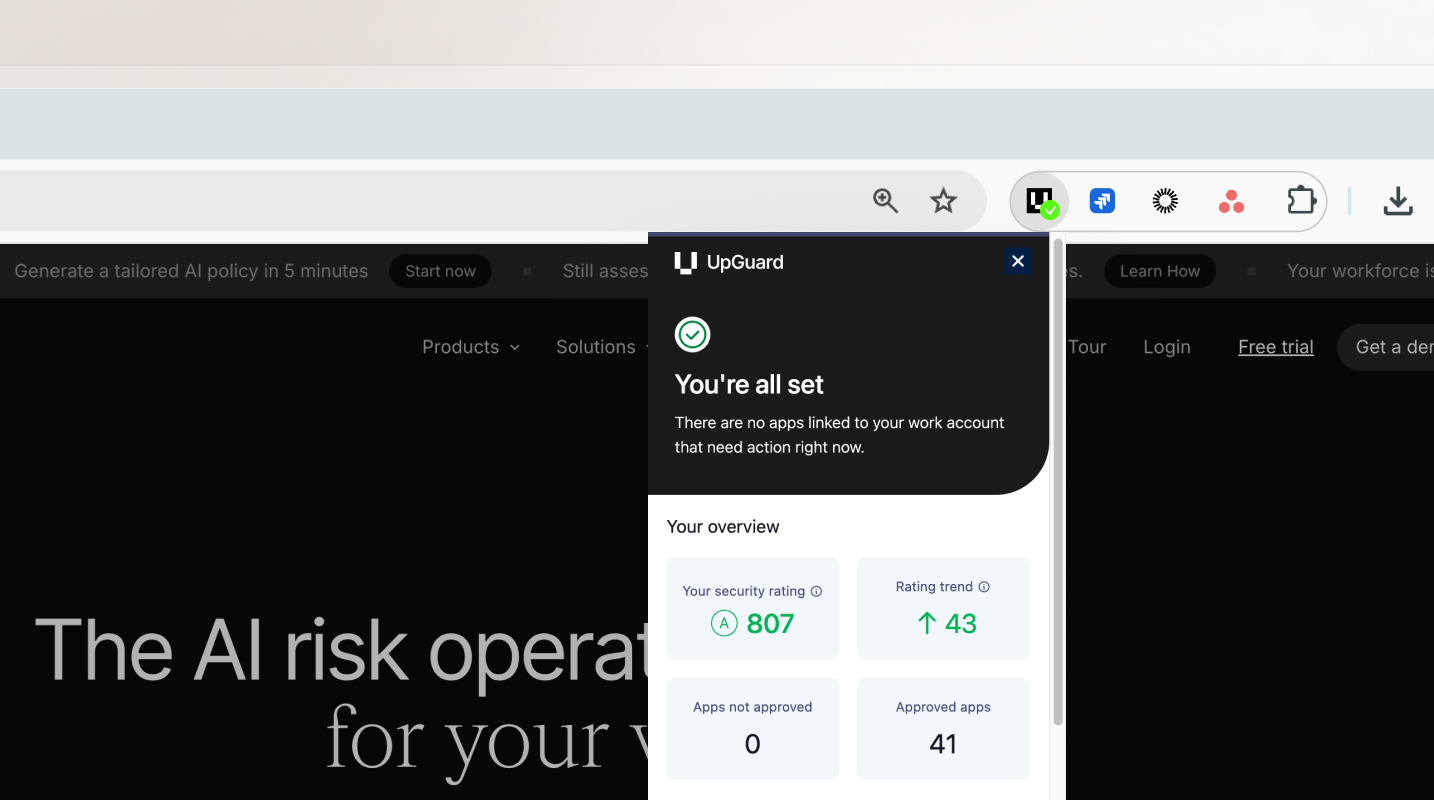
Day 4. Overnight, Automated Validation confirms the day-three risk is resolved. When Aubrey opens the User Risk extension that morning, there’s nothing left to fix. No apps need action, and her score has updated. She doesn’t need to ask in Teams whether she’s doing it right.
Day 8. Fewer “is this allowed?” tickets reach the helpdesk, because the answer now shows up in the browser.
Day 10. Aubrey needs a transcription tool. She opens one, gets a nudge, and lands on the approved option. No one had to step in.
Aubrey learned the policy where it counts: in the browser, when she needed a tool.
Put up the detour sign with User Risk
Close a road without a detour, and people find their own way around. Put up the sign, and most of them follow it.
People want to do the right thing, but they need the policy to show up while they’re choosing a tool, with a better option attached. That’s how security gets to say “use this” far more often than “no.”
Curious what your team would see? Get a demo.
Next in this series: keeping all of this running when you’re the only one managing it.
